
Playing an Experience on the now>press>play mobile app is simple and intuitive. Since the mobile app is linked to the web app, the steps are very similar - with the added benefit that you can download Experiences to use offline.
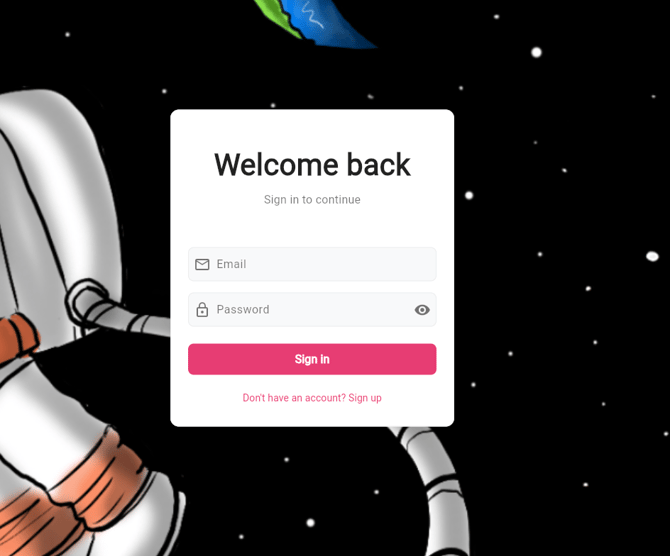
Step 1: Log in to the Mobile App
Open the now>press>play app on your mobile device and sign in with your login details.
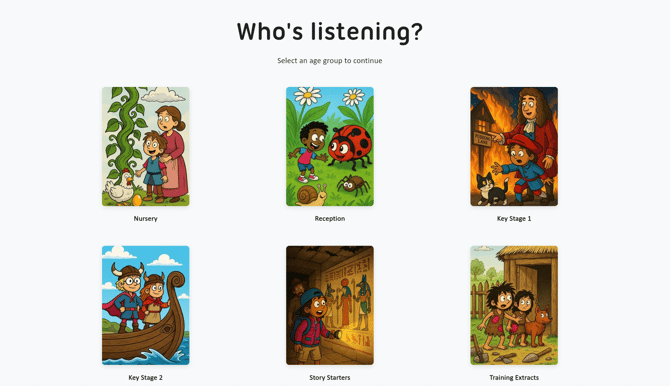
Step 2: Choose a Phase
From your Homepage, select the phase you want to explore.
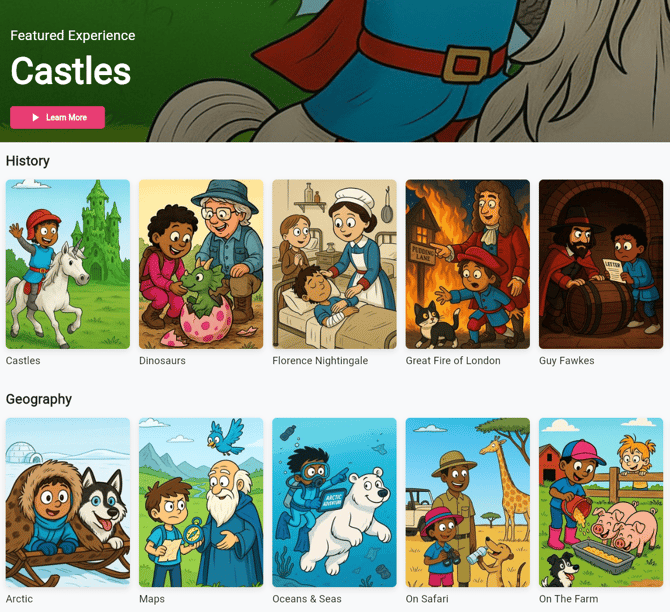
Step 3: Select an Experience
Tap on the Experience you’d like to run.
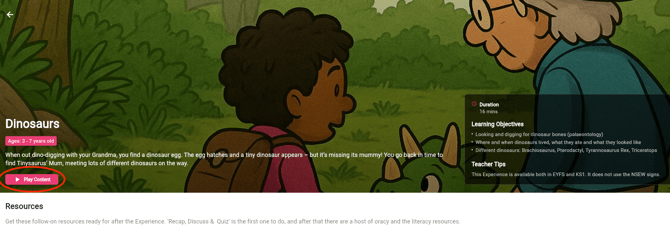
Step 4: Play Content
Tap the ‘Play Content’ button located near the top of the Experience page, just below the title and description. This will start with a short introduction, followed by the full Experience.
Tip: Ensure your transmitter is connected and your headphones are turned on. The audio will play through your headphones automatically.
Step 5: Control Playback
You can pause, restart, or skip through the Experience directly in the app.
Tip: Adjust the volume using your headphones’ controls for the best audio experience.
Downloading Experiences (Mobile App Only)
One of the biggest benefits of the mobile app is the ability to download Experiences for offline use. This feature is perfect for classrooms or locations where internet access is limited or unreliable.
- Download with ease: Tap the ‘Download’ button on the Experience page to save it to your device.
- Find your downloads: Access all your saved Experiences anytime in the Downloaded Experiences section![insert logo/icon here].
- Play offline: Once downloaded, you can enjoy the Experience without needing an internet connection.
Tip: Download Experiences ahead of time to ensure smooth playback during your sessions
For more details, check out: Can I Play Experiences Offline?
For more information on setting up and using the mobile app, please explore the following articles:
- What Devices Are Compatible with the App?
- How Do I Download & Start Using the Mobile App?
- How do I see which version of the app I have?
- How Do I Check I’m on the Latest Version of the App?
- How Do I Set Up an Android Device for now>press>play?
- How to Enable Data Sharing in the now>press>play App
Have any questions? We’re here to help!
📧 Email us at: support@nowpressplay.co.uk
📞 Call us on: 0203 727 5592